USB Tv Connector
Syscraft LabsLibraries & Demo
4.646.00 Reviews
- Version
- 157.0.0
- Installs
- 10.00K
- Age Rating
- Everyone
Screenshots
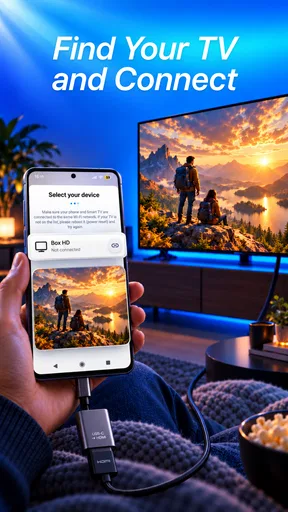
Our Review of USB Tv Connector
 Analysis by Appyee
I look at USB TV Connector as a tool for one very specific job: getting phone content onto a television through a USB connection. That focus is useful, but it also makes the details of your phone, cable, and TV matter more than they would with a wireless casting app. Before planning a movie night around it, I’d treat compatibility as the first practical question, not an afterthought. The app is free to install, while in-app purchases are listed at $9.99 per item, so I would check what is included before committing to anything beyond a basic test.
Start with the connection, not the casting button
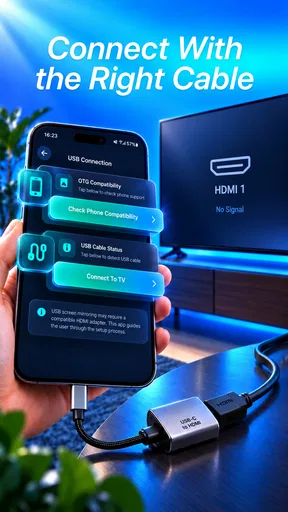
The most useful first step is to identify what your television accepts and what your phone can output. A USB port on a TV does not automatically mean it can display a phone’s screen; on many TVs, that port is intended for storage devices or power. Likewise, a phone’s charging connector does not by itself guarantee video output. I’d check the device manuals or manufacturer support pages, then use a cable suited to both ends rather than assuming any charging cable will carry a picture.
That distinction is important because USB TV Connector is presented as a way to cast from a phone to a TV, but a successful connection still depends on the hardware path being supported. If the TV recognizes the phone only as a storage device, or the phone cannot send video through the chosen connection, the app cannot make that mismatch disappear. My practical advice is to test with a photo or a short clip first. That gives you a quick answer before you depend on the setup for a long video, a meeting, or a family gathering.
A good fit for deliberate, local sharing
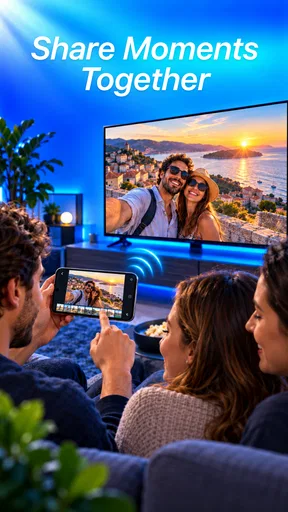
I can see the app being most useful when I already have something on my phone that I want other people to see and would rather avoid setting up a wireless network. For example, after visiting relatives, I might want to show a handful of travel photos on the living-room TV. Connecting directly can be simpler than asking everyone to join a network, finding a casting receiver, and then locating the right screen in a list of devices.
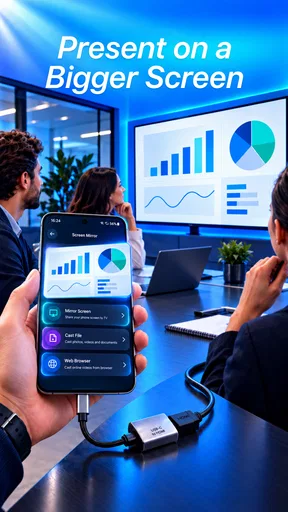
There is a small workflow improvement here: choose and arrange the material on the phone before connecting. Put the photos in the order you want, close unrelated apps, and set the phone’s screen timeout so the display does not go dark halfway through. For a presentation, download the slides or document beforehand and open them before the meeting starts. These are ordinary preparations, but they reduce the awkward pauses that make a simple phone-to-TV demo feel unreliable.
For casual viewing, I would also distinguish between showing a file and mirroring everything on the display. A photo album is forgiving: a brief pause between images is rarely a problem. A live game, video call, or fast-moving clip is less forgiving because even small delays can be distracting. I would try a short sample in the exact format and app I plan to use, rather than assuming that success with one kind of content guarantees the same experience everywhere.
How it compares with familiar alternatives
In the broader Libraries & Demo space, a USB-based connector has a different trade-off from built-in TV casting, a streaming stick, or a direct HDMI adapter. Wireless casting is often more convenient once a phone and TV are on the same network, and a streaming device can be better for regularly watching services designed for television. A cable-based route may appeal when I want a direct connection or when wireless setup is inconvenient, but it brings cable length, connector compatibility, and TV input behavior into the equation.
It is also worth separating the app’s role from the role of the hardware. A cable or adapter handles the physical connection; the TV decides which inputs it can display; the phone determines what output it can send. The app sits within that chain, rather than replacing each part. If your goal is to watch streaming services every evening, I’d compare this approach with the TV’s own apps or a dedicated streaming device. If your goal is an occasional slideshow or a quick display of phone content, a connector-style app may be a more proportionate option.
One less obvious trade-off is convenience versus control. With a wired setup, I can keep the viewing session tied to the phone in my hand, which is handy for selecting the next picture or document. At the same time, the phone is occupied and physically tethered. For a group presentation, that can mean passing the phone around or keeping it near the TV; for a relaxed viewing session, it can be simpler to use a remote and leave the phone free. Which matters more depends on whether the phone is the source I need to control or a device I want to put away.
What to check before relying on it
People often want to know whether a USB connection will work with their particular television, whether it handles every streaming app, and whether it can replace a casting device. I would not treat those as universal yes-or-no questions: phone output support, TV input behavior, and the content app all affect the result. Test the exact combination you intend to use. If a protected streaming service gives a blank display or behaves differently from a locally stored video, use the service’s supported TV app or casting method instead of assuming the connector is at fault.
For audio, check the whole route with a short clip before settling in. The TV may select an input or sound output differently from what you expect, and a picture alone is not enough to call the setup ready. If you’re presenting, keep a backup copy accessible on a laptop or use the meeting room’s established display connection. That is not a criticism of this app; it is sensible planning whenever a presentation depends on several pieces of consumer hardware working together.
USB TV Connector is listed as free, with in-app purchases priced at $9.99 per item. I would try the basic workflow before purchasing anything and confirm that the purchase addresses a need I actually have. The app is rated for Everyone, and it comes from syscraft labs. Those details make it easy to consider as a casual utility, but they do not remove the need to check whether the phone and TV can cooperate over USB.
Current version and what existing users should watch
The app’s current version is 157.0.0, and it was released on July 19, 2025. That gives a useful snapshot of its present identity, but a version number by itself does not tell me which functions changed or whether a particular cable problem has been fixed. I would avoid reading a long version number as proof of broad compatibility. Existing users should focus on whether the app still works with their own phone, TV, and connection after an update, and keep a familiar alternative available for time-sensitive use.
It has an average rating of 4.6 from 498 ratings, with 46 written reviews and more than 10K installs. I take that as a sign that people have found a reason to try it, not as a guarantee that every hardware combination will behave the same way. The app requires Android 7.0 or later, which is worth checking before installing it on an older device. If you’re choosing between this and a wireless option, the deciding factor should be your actual setup: a compatible cable connection and occasional sharing favor this route; frequent streaming, remote control, or minimal phone handling may favor a TV app or dedicated device.
Ever wondered how you can seamlessly connect your smartphone to your TV without any fuss? Well, that's exactly where the USB TV Connector app steps in. It promises to transform your smartphone into a multimedia hub, allowing you to stream your favorite content directly to your television. I recently took it for a spin, and here’s my take on it.
Getting Started with USB TV Connector
First things first, setting up the USB TV Connector is a breeze. You just need a compatible cable and the app itself, which is readily available on both Android and iOS. Once installed, I was greeted with a straightforward interface that made navigation a piece of cake. No complicated settings or tech jargon—just plug and play!
Features That Stand Out
One of the coolest features is the wide range of compatibility. Whether you’ve got an Android or an iPhone, this app has got you covered. It supports a variety of file formats, so you can showcase photos, videos, and even presentations on the big screen. I tested it with a mix of media, and it handled everything like a champ.
Another aspect worth mentioning is the screen mirroring function. It’s incredibly handy if you’re looking to project your phone’s display onto your TV. Playing mobile games on a large screen was a blast, and streaming apps like Netflix or YouTube worked flawlessly.
User Experience and Interface
The app's interface is designed with simplicity in mind. The developers have done a great job ensuring that even tech newbies can navigate through it without feeling overwhelmed. Everything is where you’d expect it to be, and the app runs smoothly without any noticeable lag.
What’s more, the connection is stable and reliable. I didn’t experience any interruptions or disconnections during my testing. The audio and video quality were top-notch, making it feel like an extension of my smartphone rather than just a mirror.
Who Is It For?
If you love sharing photos from your latest vacation or enjoy watching movies and shows on a bigger screen, the USB TV Connector is a perfect fit. It’s also a great tool for professionals who need to present slideshows or documents during meetings. The app’s versatility is its strength, catering to both entertainment and work-related needs.
Final Thoughts
Overall, the USB TV Connector is a fantastic utility app that delivers on its promises. It’s easy to use, reliable, and enhances your viewing experience significantly. If you’re tired of squinting at your smartphone screen or just want to make the most out of your TV, this app is definitely worth checking out.
So, whether you’re a movie buff, a gamer, or a professional on the go, the USB TV Connector could be the missing link you’ve been looking for. Give it a try, and you might just find yourself wondering how you ever lived without it!
Verdict
Strengths of USB Tv Connector
- Seamless screen mirroring experience.
- Supports a wide range of TV models.
- User-friendly interface.
- No need for additional hardware.
- High-quality video and audio output.
Limitations of USB Tv Connector
- Limited support for older devices.
- Requires stable Wi-Fi connection.
- Some features are premium only.
- Occasional lag in streaming.
- Ads can be intrusive at times.
Other Releases by Syscraft Labs
View All
Carplay for Android Auto
Auto & Vehicles3.8
Similar Picks in This Category
View All
PGT: GFX, Launcher & Optimizer
Trilokia Inc.4.5

AusweisApp Bund
Governikus Service GmbH3.7

Cardboard
Google LLC3.2

Gamers GLTool with Game Tuner
Trilokia Inc.4.5

Multi Web Chat - Read Secretly
World Scan & Cleaner3.8

App Cloner Premium & Add-ons
App Listo1.9
Frequently Asked Questions
What is USB TV Connector and how does it work?
USB TV Connector is an app that allows users to connect their Android or iOS devices to a TV via USB. It supports various video formats and can mirror your device's screen onto a larger display. To use it, simply connect your device to the TV using a compatible USB cable and follow the app's instructions.
Is USB TV Connector compatible with all TVs and devices?
While USB TV Connector supports a wide range of devices, compatibility can vary depending on the TV model and the operating system of your device. It works best with TVs that have USB ports and support screen mirroring. Checking the compatibility list on the app's download page can help ensure a smooth experience.
Are there any additional hardware requirements for using USB TV Connector?
Apart from a USB cable, no extra hardware is strictly necessary. However, for optimal performance, using a high-quality USB cable that supports data transfer is recommended. Some users may also find that a powered USB hub can improve connectivity if there are issues with direct connection.
Does USB TV Connector support high-definition video streaming?
Yes, USB TV Connector is designed to support high-definition (HD) video streaming. The quality of the stream will depend on your device’s capabilities and the quality of the USB connection. Users should ensure that their device and TV support HD for the best viewing experience.
Is there a cost associated with using USB TV Connector?
USB TV Connector is often available as a free download with optional in-app purchases. Some features may be locked behind a paywall, offering enhanced functionality or removing ads. Checking the app store listing will provide information on any associated costs or subscription models.
